If you have an iPhone 4 or 4S, try to play any music or sound, then use finger or thumb to block the speaker hole located at the bottom of your iPhone, then you will find only one speaker will work, the right speaker side. not work for the left side.
Only one speaker works, is it problem with your iPhone?
The answer is not problem, because although the shape and looks the same as speaker, located at the left side is not a speaker, it is a microphone.
Read more »
Friday, May 30, 2014

Tuesday, May 27, 2014
How to Resize Windows 8 Icons
You can make larger or smaller the icons on the desktop or on the metro user interface in Windows 8.
Change size of icons on Windows 8 Desktop :
Use the mouse
Select all or some of icons
Press and hold Ctrl/Control key, then use scroll on the mouse to resize the icons.
Read more »
Change size of icons on Windows 8 Desktop :
Use the mouse
Select all or some of icons
Press and hold Ctrl/Control key, then use scroll on the mouse to resize the icons.
 |
| Select some or all icons using mouse |
How to Forget Wifi in Windows 10
To Forget Wi-fi Network in Windows 10
1. Close/disconnect Wi-fi connection
2. Click the Windows logo / Start Menu , or press Windows logo on the keyboard
3. Choose Settings
4. Choose Network & internet

5. Choose Change adapter options
Read more »
1. Close/disconnect Wi-fi connection
2. Click the Windows logo / Start Menu , or press Windows logo on the keyboard
3. Choose Settings
4. Choose Network & internet

5. Choose Change adapter options
Read more »
Friday, May 23, 2014
How To Grab Screen on iPhone Without Additional App
To grab or take a screen shot or capture in iPhone is by use the home and power/lock keys. It affects to iPhone that uses iOS 2.0 or higher. Whatever your iPhone device, 3G, 3GS, 4, 4S or 5, you can use this trick without additional application.
How to capture :
Open the screen you want to take a screenshot
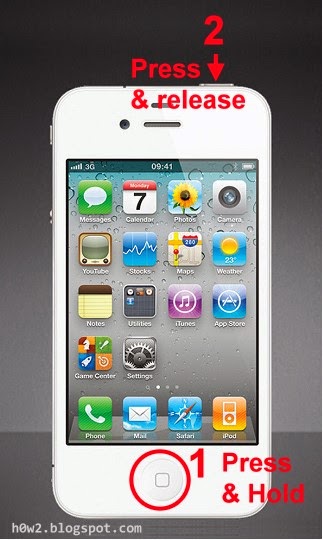
Read more »
How to capture :
Open the screen you want to take a screenshot
Read more »
Wednesday, May 14, 2014
Enter to Safe Mode Samsung Galaxy S5
To find out the problem on Smartphone Samsung Galaxy S5 you can get into the Safe mode. In Safe Mode, Apps/applications those you installed (third-party Apps) will not show up or will disable, only Samsung Galaxy S5 default Apps will be active.
To Enter Safemode Samsung Galaxy S5 :
• When the Galaxy S5 is on, press and hold the power button, then it will display the Device options.
• Touch/tap and hold the Power Off option, will appear Reboot to safe mode tap OK. The smartphone then will restart and go into Safe Mode.
Read more »
To Enter Safemode Samsung Galaxy S5 :
• When the Galaxy S5 is on, press and hold the power button, then it will display the Device options.
• Touch/tap and hold the Power Off option, will appear Reboot to safe mode tap OK. The smartphone then will restart and go into Safe Mode.
Read more »
Saturday, May 10, 2014
How to Know Who are Connecting to Remote Desktop Windows 2008
Easy way to know the people or users those connected to the Windows Server 2008 Remote Desktop, is through the Windows Task Manager.
• Go to Task Manager. One of the ways to go to Windows Task Manager is by Right-click on the toolbar area (see picture) then choose Start Task Manager
Read more »
• Go to Task Manager. One of the ways to go to Windows Task Manager is by Right-click on the toolbar area (see picture) then choose Start Task Manager
 |
| Right-click to get the Task Manager menu |
Wednesday, May 7, 2014
Ctrl Alt Del for Windows Remote Desktop
In the Windows Remote Desktop (RDP) If you want to send Ctrl+Alt+Del (Control, Alternate, Delete) keys from keyboard to the remote computer (in order to get to the task manager, switch user, change password, lock computer, etc), you cannot use Ctrl+Alt+Del keys, because it is not sent to the remote computer, it affect to the local computer, not to remote computer.
To send Ctrl+Alt+Del to the remote computer in Windows Remote Desktop, use combination of these keys :
Ctrl+Alt+End
To send Ctrl+Alt+Del to the remote computer in Windows Remote Desktop, use combination of these keys :
Ctrl+Alt+End
 |
| Ctrl+Alt+End for RDP |
Subscribe to:
Posts (Atom)