On the Guest Operating system / VM (Virtual machine) in VMWare Workstation , if you want to go to BIOS setting menu or want to set boot priority, etc, by pressing ESC key, F2 key, etc, usually you will not be able to reach it, because the process is too fast.
To be able to enter Bios setting,You can do by setting delay time before the system launch the operating system
You must set the Configuration file (vmx file) of the Virtual Machine.
Open VMX file using Notepad then add the following code:
bios.bootdelay = "5000" and then Save it.
Read more »
Showing posts with label Windows. Show all posts
Showing posts with label Windows. Show all posts
Saturday, November 1, 2014

Saturday, October 25, 2014
How to Setup Gmail in Windows 8 mail
To set Gmail and others (yahoo mail , etc) in Windows 8 or Windows 8.1, first you must have Microsoft account and you have to add it in your Windows mail.
If you don't have, you can register at hotmail.com, live.com, or outlook.com.
The steps :
In Windows 8 or 8.1, choose Mail

Add your Microsoft account if not already
Read more »
If you don't have, you can register at hotmail.com, live.com, or outlook.com.
The steps :
In Windows 8 or 8.1, choose Mail
Add your Microsoft account if not already
Read more »
Tuesday, October 21, 2014
Share Android internet with pc via usb
How to share internet android to Laptop/Computer using USB.
 To share Android internet connection with PC :
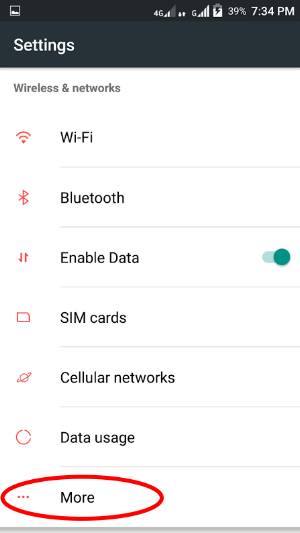
1. In Android, go to 'Settings'


3. Choose 'Tethering & portable hotspot'
 4. Connect USB data cable between Android and computer.
Read more »
1. In Android, go to 'Settings'

2. Choose 'More'

Read more »
Saturday, October 18, 2014
How to make Screenshot Windows 10
Capture screen in Windows 10

Same as previous Windows, in Windows 10 if you want to make screenshot/capture by pressing Prt Scr (Print screen) key.
Open screen that you want to capture
Press Print screen key, it will be copied to clipboard. Paste it to the picture editor (Ms Paint, Photodhop, etc) or Ms. Word, etc.
Press Alt + Print Screen to capture only active window.
To make automatic generate new file (screenshot...png) press Windows (Windows logo)+ Print Screen. It will generate png file in folder Pictures\Screenshot .
Same as previous Windows, in Windows 10 if you want to make screenshot/capture by pressing Prt Scr (Print screen) key.
Open screen that you want to capture
Press Print screen key, it will be copied to clipboard. Paste it to the picture editor (Ms Paint, Photodhop, etc) or Ms. Word, etc.
Press Alt + Print Screen to capture only active window.
To make automatic generate new file (screenshot...png) press Windows (Windows logo)+ Print Screen. It will generate png file in folder Pictures\Screenshot .
Tuesday, October 14, 2014
Windows Spotlight file location
Windows 10 lock screen image file location.

To see Windows spotlight file location, you have to change folder option view for hidden file/folder to become Show hidden files, folders.
1. Open File Explorer.
2. Choose View tab. Go to Option then click Change folder and search options.

3. In Folder Options page, choose View tab.
4. Select the Show hidden files, folders and drives.
5. uncheck the Hide extensions for known file types. Click Apply, click OK.
Read more »

To see Windows spotlight file location, you have to change folder option view for hidden file/folder to become Show hidden files, folders.
1. Open File Explorer.
2. Choose View tab. Go to Option then click Change folder and search options.

3. In Folder Options page, choose View tab.
4. Select the Show hidden files, folders and drives.
5. uncheck the Hide extensions for known file types. Click Apply, click OK.
Read more »
Wednesday, October 8, 2014
How to Install Telnet Client in Windows 10
Enable Telnet Client in Windows 10.

Easy way to enable the Telnet client in Windows 10, also in Windows 8 and Windows 7. by using the command line/command prompt and write or paste the following command:
pkgmgr /iu:"TelnetClient"
To open Command line/ command prompt, press Windows+R then type cmd, klick OK or hit Enter.
Read more »
Easy way to enable the Telnet client in Windows 10, also in Windows 8 and Windows 7. by using the command line/command prompt and write or paste the following command:
pkgmgr /iu:"TelnetClient"
To open Command line/ command prompt, press Windows+R then type cmd, klick OK or hit Enter.
Read more »
Friday, October 3, 2014
Shutdown Schedule Windows 10
Easy way to set shutdown schedule in Windows 10.
1. Press Windows key + R to launch Run command dialog.
2. In the Run column, write: shutdown -s -t TimeInSecond
For example if you want to set shutdown in 10 minutes, you must write:
shutdown -s -t 600 Click Ok or press Enter.


1. Press Windows key + R to launch Run command dialog.
2. In the Run column, write: shutdown -s -t TimeInSecond
For example if you want to set shutdown in 10 minutes, you must write:
shutdown -s -t 600 Click Ok or press Enter.

3. Then will get notify that Windows will shutdown in (10) minutes. click close.

This method can also be used for previous Windows.
Tuesday, September 30, 2014
Back to local account Windows 10
How to go back to local account in windows 10

When you already use your Microsoft account to log in/sign in to your Windows computer and you want to be back to local account.
1. After sign in using Microsoft account. Click Start menu programs.
2. Choose Settings.

Read more »
When you already use your Microsoft account to log in/sign in to your Windows computer and you want to be back to local account.
1. After sign in using Microsoft account. Click Start menu programs.
2. Choose Settings.

Read more »
Notepad in Windows 10
How to run Notepad in Windows 10.
Creating Notepad shortcut at Desktop Windows 10.
 You will not see Notepad at Windows 10 start menu programs (All Apps).
But you can still run it from command line, Run command, or you can create shortcut in desktop and pin it to taskbar.
To run notepad using run dialog command :
1. Press Windows key + R to open run dialog.
2. Write Notepad in the column.
3. Press Enter or click OK.

Then the Notepad will appear.
To create Notepad shortcut at the desktop :
Read more »
Creating Notepad shortcut at Desktop Windows 10.
But you can still run it from command line, Run command, or you can create shortcut in desktop and pin it to taskbar.
To run notepad using run dialog command :
1. Press Windows key + R to open run dialog.
2. Write Notepad in the column.
3. Press Enter or click OK.

Then the Notepad will appear.
To create Notepad shortcut at the desktop :
Read more »
Sunday, September 28, 2014
How to set Proxy in Microsoft Edge
Proxy setting in Microsoft Edge Browser.
You will not see the Internet Options menu in Microsoft Edge Browser in order to go to Proxy Server Setting. (different with Internet Explorer, it has Internet Options menu).
But we still have other way to access Internet properties page with easy. not from the browser.
To go to Proxy setting page:
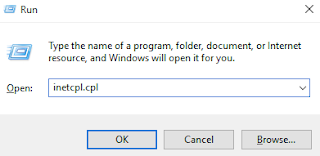
1. Press Windows logo + R to launch Run dialog.
2. Write: inetcpl.cpl then hit Enter or click OK.

Internet properties page will appear.
3. Choose Connections tab.
4. Choose LAN settings.
Read more »
Saturday, September 27, 2014
How to Activate Administrator Account in Windows 8.1
Default setting for the Administrator account in Windows 7 and Windows 8 are disable, to use this administrator account you have to set it to enable first.
In Windows 8.1 you will not see the user and group folder from Computer Management menu. So you can't activate administrator account from Computer Management menu.
The way to active administrator account in Windows 8.1 :
• Run Command Prompt as administrator
From Metro UI (if you are on Desktop, press Windows logo on the keyboard to move or toggle between Desktop and Metro UI (User interface), then Write cmd, it will automatically search for Command Prompt.
After you see the Command Prompt, right click on it and choose Run as administrator.
Read more »
In Windows 8.1 you will not see the user and group folder from Computer Management menu. So you can't activate administrator account from Computer Management menu.
The way to active administrator account in Windows 8.1 :
• Run Command Prompt as administrator
From Metro UI (if you are on Desktop, press Windows logo on the keyboard to move or toggle between Desktop and Metro UI (User interface), then Write cmd, it will automatically search for Command Prompt.
After you see the Command Prompt, right click on it and choose Run as administrator.
Read more »
Thursday, September 18, 2014
How to Reset Microsoft Edge Browser
There is no Internet Options link menu in Microsoft Edge browser, in order to reset the browser but you can still access it using other way in Windows 10.
Resetting Microsoft Edge Browser :
1. Press Windows key + R (to show Run dialog command).
2. Write: inetcpl.cpl then hit Enter or click OK.
3. Internet Properties will appear.
4. Choose Advanced tab.
Read more »
Monday, September 15, 2014
How to capture audio from video
Capture audio from youtube.
Capture music from video.

To capture audio, music or voice from a video, online or offline video (from Internet or from hard/optical drive), you can do by using the audio editing software, in this example I use Audacity.
Audacity is an audio editing tool/software, easy to use and good result. You can download at http://www.audacityteam.org/
Because the aim is capturing audio from the video, it is better to disable the microphone of the computer/laptop to avoid recording voice around you.
To disable microphone :
• Right click speaker icon at the tray icon.
• Click Recording devices.

• Right click at Microphone then choose Disable.
Read more »
Capture music from video.
To capture audio, music or voice from a video, online or offline video (from Internet or from hard/optical drive), you can do by using the audio editing software, in this example I use Audacity.
Audacity is an audio editing tool/software, easy to use and good result. You can download at http://www.audacityteam.org/
Because the aim is capturing audio from the video, it is better to disable the microphone of the computer/laptop to avoid recording voice around you.
To disable microphone :
• Right click speaker icon at the tray icon.
• Click Recording devices.
• Right click at Microphone then choose Disable.
Read more »
Sunday, September 14, 2014
How to know IP Address in Windows 10
To know IP Address (Internet Protocol Address) in Windows 10, same as previous Windows versions, we can do using two ways, first using Command line/ command prompt, and the second is through Network and Sharing center menu.
To Know IP address by command line :
1. Press the Windows Logo + R (to open the RUN command)
2. Write cmd and then click OK or press Enter.

2. The command line/command prompt will appear, type ipconfig and press enter, then the IP address will be displayed.

How to know the IP address through the Network and Sharing Center menu:
Read more »
To Know IP address by command line :
1. Press the Windows Logo + R (to open the RUN command)
2. Write cmd and then click OK or press Enter.
2. The command line/command prompt will appear, type ipconfig and press enter, then the IP address will be displayed.

How to know the IP address through the Network and Sharing Center menu:
Read more »
Friday, September 5, 2014
Divide Hard Disk Windows 8
Generally when you buy a new notebook or desktop computer, it has only one local harddisk drive letter, usually it will be the C drive only.
If you want to have new drive letter for example D or E without adding new physical harddisk, you can do by shrink the volume of C drive and make new partition for new drive.
Same as in Windows 7, to divide the partition and create a new volume in Windows 8, you can do easily without using additional software/application.
• From the Desktop, select File Explorer, then right click at Computer
• Then click Manage.
Read more »
If you want to have new drive letter for example D or E without adding new physical harddisk, you can do by shrink the volume of C drive and make new partition for new drive.
Same as in Windows 7, to divide the partition and create a new volume in Windows 8, you can do easily without using additional software/application.
• From the Desktop, select File Explorer, then right click at Computer
• Then click Manage.
Read more »
Friday, August 29, 2014
How to set Default Web Browser in Windows 10
When click the link of web address from document, pdf, doc office, xls, etc, and you want the link is opened by your favorite browser, then you have to set the browser to default browser.
In Windows 10 to set default internet browser :
1. Right click at Start Menu.
2. Then choose Control Panel.

3. In Control Panel window, choose Default Program.
 Read more »
In Windows 10 to set default internet browser :
1. Right click at Start Menu.
2. Then choose Control Panel.
3. In Control Panel window, choose Default Program.

Tuesday, August 26, 2014
Where is Ms Paint in Windows 10
You will not see the Ms Paint at Start menu All Apps or the shortcut on the Desktop in Windows 10.
The App file is still inside the Windows but not be shown in the Start menu All Apps.

To run Ms Paint in Windows 10, you can directly by using the run command, or you can create the shortcut on the desktop.
1. Using Run Command:
Press Windows logo + R
Type: mspaint then press Enter or click Ok.

Then the App will run.
Read more »
The App file is still inside the Windows but not be shown in the Start menu All Apps.
To run Ms Paint in Windows 10, you can directly by using the run command, or you can create the shortcut on the desktop.
1. Using Run Command:
Press Windows logo + R
Type: mspaint then press Enter or click Ok.
Then the App will run.
Read more »
Saturday, August 9, 2014
How to Restore Mikrotik Configuration
To restore configuration of Mikrotik router board from the backup file :
• Open Winbox
• Login to your mikrotik using Admin privilege
• Go to Files menu
• Select the backup file. If the backup file is not in the list (other location/drive or flashdisk), you need to copy and paste the backup file to this window.
Read more »
• Open Winbox
• Login to your mikrotik using Admin privilege
• Go to Files menu
• Select the backup file. If the backup file is not in the list (other location/drive or flashdisk), you need to copy and paste the backup file to this window.
Read more »
How to Backup Mikrotik Configuration
It is very important to get the backup configuration for your Mikrotik router board. The backup file configuration will be needed when your mikrotik router board has error on it's configuration, or want to clone the configuration to other Mikrotik router board.
To Backup Mikrotik router board configuration :
1. Open Winbox.
2. Login to your Mikrotik (use admin/full group member).
3. Go to Files menu.
4. To start backup, click Backup.

Read more »
Sunday, August 3, 2014
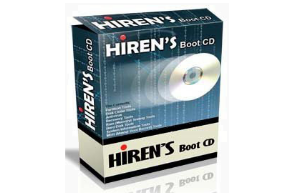
How to Run Hiren's Boot CD on Flash drive
How to create Hiren's Boot CD on a flash drive, so you can boot your computer using Hiren's Boot CD from a flash drive.
• Take a flash drive with size of 1 GB , you can also use a bigger size but the bigger will take longer time when it is formatting, because we will use full format not quick format.
• Format the flash drive same as usual when you format your flash drive (using file explorer, right-click the flash drive, then choose format ). but has a little different :
File system set to FAT32.
Don't give a tick on Quick Format.
Click Start to start formatting.

• Run the file : grubinst_gui.exe.
Select your flash drive, click refresh if not yet appear.
At the Part List, choose Whole Disk (MBR). click refresh if not yet appear.
Click Install.

Read more »
Subscribe to:
Posts (Atom)