Saturday, September 6, 2014

How to transfer Domain from Godaddy

To transfer the domain from one domain registrar to other domain registrar is not difficult.
What you need is the EPP code from your first/old domain registrar where your domain is exist. The EPP code is required  by your new domain registrar.
(EPP code is an authorization key provided by your old registrar and required by your new registrar).

In GoDaddy domain registrar, the EPP code  is named: Authorization code. so if you want to transfer domain from Godaddy you have to know the Authorization code for your domain.

To Transfer Domain from Godaddy to  your other domain registrar :
(get Authorization code from Godaddy)
1. Log-in/sign-in to your Godaddy account.
2. Choose the domain that you want to transfer  .


3. Go to Domain setting.
4. Update your contact information.
5. Set Domain Lock to Off.
6. Click Get authorization code.
Then Godaddy will send the authorization code to your email.


7. Now, Sign-in to your new domain registrar, where your domain will be transferred.
8. Usually from domain menu you will find the Transfer Domains to Us (maybe in yours the words will be different).
 9. Choose it (Transfer Domains to Us), then enter the domain name, then you will be asked for the EPP code. Enter the authorization code that you have received from Godaddy by email.
10. Follow the wizard  until you checkout and pay for the domain.
11. If your payment has already verified, not take a long time, again you will receive email from Godaddy about Domain Transfer Notice.
12. You have to sign-in to Godaddy and choose  to the Domain again to accept the transfer.

13. In transfer tab you will see the domain name that will be transferred , choose Manage.


  14. In Transfer Details, choose Accept or decline

15. Select Accept transfer and click OK


16. Wait a moment, then you will receive email from new domain registrar saying that the domain is already active.

Friday, September 5, 2014

Divide Hard Disk Windows 8

Generally when you buy a new notebook or desktop computer, it has only one  local harddisk drive letter, usually it will be the C drive only.

If you want to have new drive letter for example D or E without adding new physical harddisk, you can do by shrink the volume of C drive and make new partition for new drive.

Same as in Windows 7, to divide the partition and create a new volume in Windows 8, you can do easily without  using additional software/application.

• From the Desktop, select File Explorer, then right click at Computer
• Then click Manage.
Read more »

Sunday, August 31, 2014

How to Set Recovery Mode on iPhone

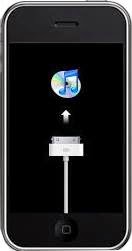
Recovery Mode on iPhone is needed when you want to set your iPhone to factory default setting using iTunes.

To enter to the Recovery Mode on iPhone :

• Turn off the iPhone,
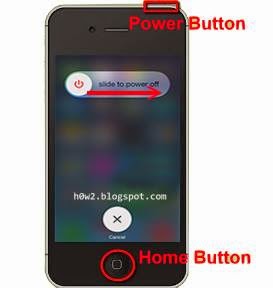
(Press and hold power/sleep button for about 4 seconds, then touch and slide from left to right on slide to power off that appearing on the screen). Wait until the iPhone is really off.


• After the iPhone is off, Press and hold Home Button,
• Still hold the Home button, connect iPhone to Computer using iPhone data cable ( holding the Home Button until Recovery Mode appears on the screen).


Saturday, August 30, 2014

Using PC Keyboard for Android Device

When you have to write many words in your Android device, computer tablet or Smartphone, it will be easier and faster if using external keyboard, you can use the computer (PC) keyboard.

USB keyboard is used for Android Tablet
Read more »

Friday, August 29, 2014

How to set Default Web Browser in Windows 10

When click the link of web address from document, pdf, doc office, xls, etc, and you want the link is opened by your favorite browser, then you have to set the browser to default browser.

In Windows 10 to set default internet browser :

1. Right click at Start Menu.
2. Then choose Control Panel.


3. In Control Panel window, choose Default Program.

Read more »

Tuesday, August 26, 2014

Where is Ms Paint in Windows 10

You will not see the Ms Paint at Start menu All Apps or the shortcut on the Desktop in Windows 10.
The App file is still inside the Windows but not be shown in the Start menu All Apps.


To run Ms Paint in Windows 10, you can directly by using the run command, or you can create the shortcut on the desktop.


1. Using Run Command:

Press Windows logo + R 
Type:  mspaint  then press Enter or click Ok.


Then the App will run.


Read more »

Saturday, August 23, 2014

how to know who are connected to my wifi

To know who are connected to your wifi with easy and without login to the wifi/router device.


Use your smartphone Android or iOS and install an application named : Fing
Fing is a network scanner tool, easy in using, fast, and accurate,   you will know the ip address and the MAC address (media access control address) of all devices connected to the Wifi.

Open Google Play Store (Android) or App Store (iOS), then search the app using keyword: fing,
then choose Fing-Network Tools from Domotz.ltd and install it.


After installed, run the Application.
Read more »